

Manage Content Health
Before proceeding, ensure that you have at least one Service Desk configured.
The instructions to configure a Service Desk are on:
If there is no active Service Desk, then Set up Content Health is disabled.

-
Go to Advanced Settings > Content Health and click Set up Content Health.

-
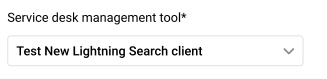
Select a Service Desk Management Tool. A Service Desk is the platform where your support agents work. Knowbler supports three service desks: Salesforce, Zendesk, and Microsoft Dynamics.
-
Enter reviewer emails in Content Reviewers. Press Enter after writing each email address. Reviewers are the people who check knowledge articles for selected criteria (next step) and give articles a rating.
Check Receive email alerts when articles are awaiting review to send daily emails to the reviewers for the articles which was sent for review to the reviewer.

-
In Agent Preferences:
-
To display content health score to agents during article generation, check Agents can Preview Content health score at the time of Knowledge creation.
-
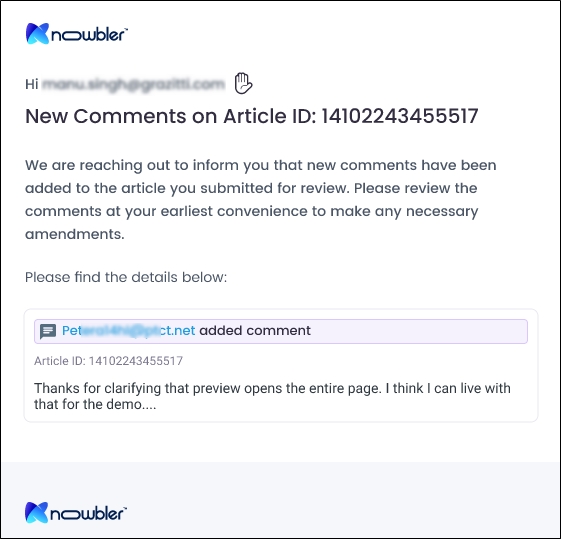
To send email notifications to agents when a Content Reviewer sends the agent articles with feedback, check Send email notifications to the agent for the feedback received from the reviewer on articles submitted for review.

Once the email notification feature is turned on, the agents
-
Receive an email as soon as an article is returned to the author with feedback.
-
Receive daily emails about the articles returned with feedback, including the articles that the author hasn't worked on since the last email. Each email contains the article title, article number, and the date the article was submitted for review by the author.
-
-
-
Turn on Preview Article Content Health to show Content Health Score to support agents working in Salesforce or Zendesk.

-
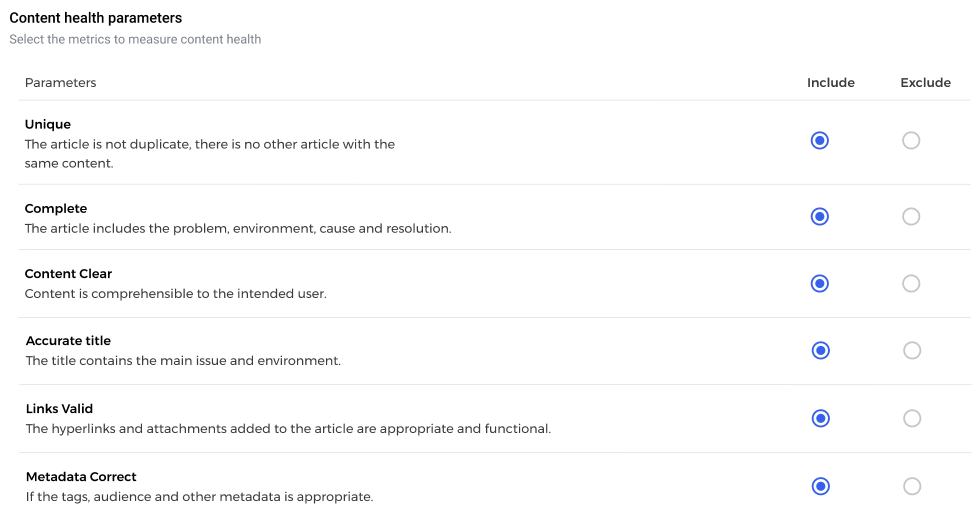
Pick Content Parameters. Six parameters are supported: Unique, Complete, Content Clear, Accurate Title, Links Valid, and Metadata Correct. An article is evaluated twice on the parameters checked in Include. First, by Knowbler's machine learning and the second time by a Content Reviewer. ML checks an article for four parameters: Unique, Accurate Title, Links Valid, and Metadata.
-
Define the minimum threshold that articles should ideally meet or exceed. If Set Content Standard is 90 and four out of six articles score 90 or higher, then 60% of your articles meet the standards. The formula to calculate content health score is
 .
.
-
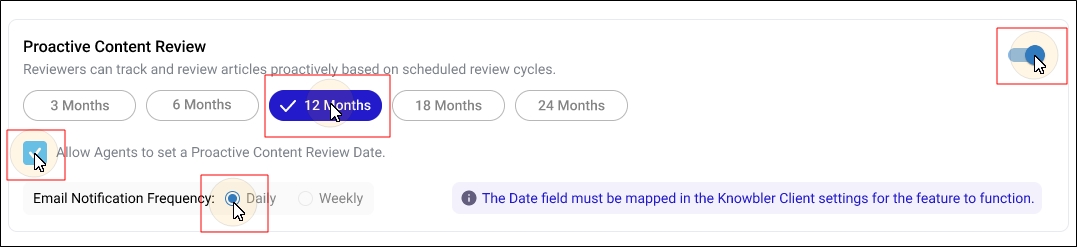
Configure Proactive Content Review. When this setting is on, the reviewers receive an email at 12:00 AM UTC (if the email frequency is daily) or 12:00 AM UTC on Mondays (if the email frequency is weekly) urging them to review old content.
The goal of this configuration is to ensure that knowledge articles don't go stale. The frequency of the email can be configured. The following values are available: 3 Months, 6 Months, 12 Months, 18 Months, and 24 Months. The review frequency period can be changed any time.
You can allow the agents to set a custom Proactive Content Review Date. If you change the review frequency period and an agent has set a custom Proactive Content Review Date, then whichever date falls earlier will become the agent's new review date.
Let's say that the agent has set the custom date to 12 June and you change the frequency from six months to three months. If the next frequency is on 10 June, then the agent will receive an error on the set frequency. If the next frequency is on 14 June, then the agent will receive the alert on their custom frequency.
-
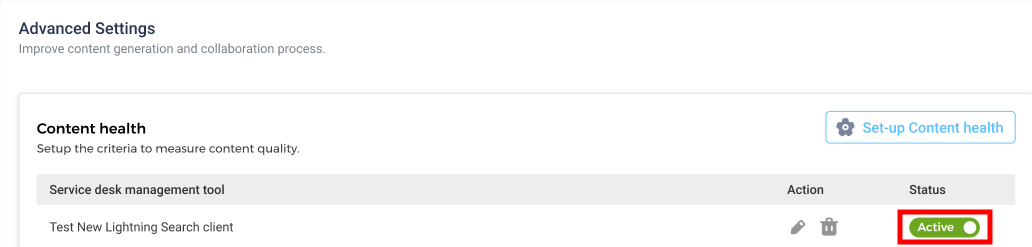
On Advanced Settings, Activate the Content Health report for your service desk.
Edit or Delete Content Health
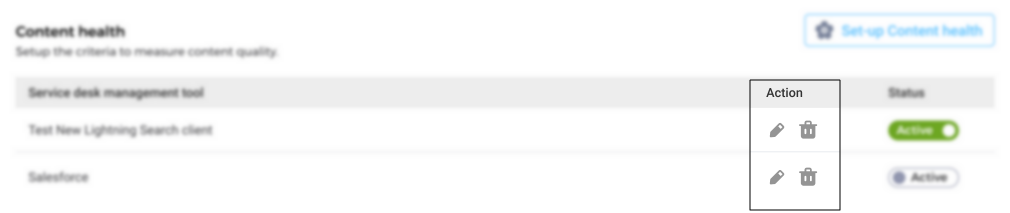
You can edit a Content Health report or delete it using  and
and  in Action.
Related Articles
-
For admins: Intelligent Insights: Content Health and Content Health Summary
-
For Content Reviewers: Content Reviewers: Rate Knowledge Articles in a Service Desk