Content Reviewers: Rate Knowledge Articles in a Service Desk
All Content Reviewers can see a Predicted Score tab on launching Knowbler in their Service Desk. If you don't see the tab, then it means that your Knowbler admin hasn't added you into the reviewers' list. Share your business email with your Admin and ask the Admin to add you into the list of Content Reviewers. The process has been explained in Configure Advanced Settings in Knowbler.

Fig. A snapshot of the Predicted Score tab in Knowbler.
For newly created articles, you can see "Evaluate" instead of "Predicted Score". The tab "Evaluate" appears when the Knowbler's machine learning systems haven't reviewed the article. The machine review can take up to 15 minutes.

Fig. A snapshot of the Evaluate button in Knowbler.
If you see the tab, then you are a Content Reviewer and you can proceed with rating knowledge articles. The reviewed articles are marked "Already Evaluated" and their Content Health score is displayed. The predicted score is attained by calculating the normal average.

Fig. A snapshot of an already-reviewed article in Knowbler.
Evaluate Articles in Knowbler
-
From
 , select a language.
 Note: Article predictions are currently supported only in English.

-
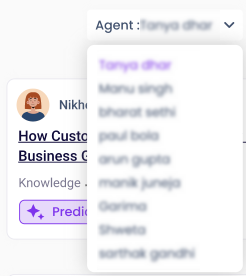
From Agent, select the rep whose articles you plan to review.
-
Click anywhere on an article to open it for review.
-
The draft opens. Review it and click Predicted Score.
-
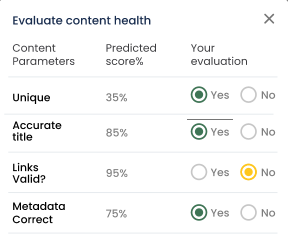
In Evaluate Content Health > Your Evaluation, check "Yes" if the article matches the named criterion, or "No" if it doesn't.
-
Click Submit.
You can now consult Analytics Intelligent Insights for rating data: Intelligent Insights: Content Health and Content Health Summary.
Content Reviewing in Salesforce and Zendesk
Knowbler in Salesforce and Zendesk provides several additional features to make content reviews more efficient and manageable.
Content Reviewers can view the articles submitted by an agent or a group of agents using the Agent filter.
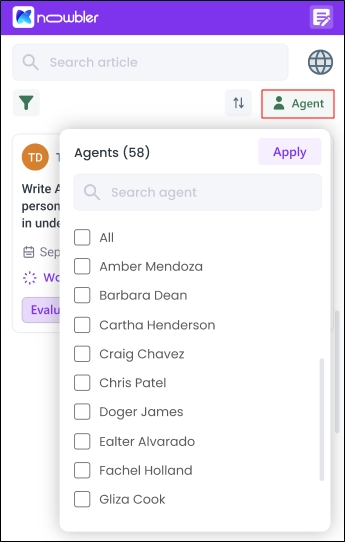
Fig. A snapshot of the Agent filter.
Submit Review is available to all content reviewers but only content reviewers with the appropriate access permissions can Publish articles.
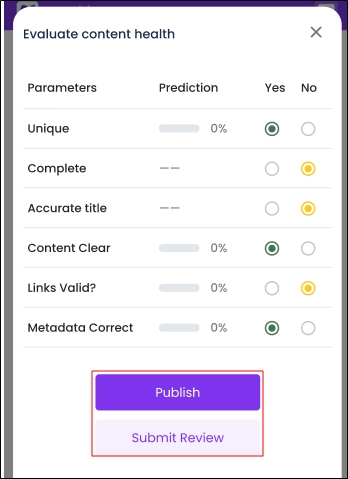
Fig. A snapshot of the Evaluate Content Health screen.
Three filters are available in the Article list for content reviewers:
-
All Articles: Lists Draft and/or Published articles.
-
Submitted for Review: Shows articles submitted by agents for review. Draft articles submitted by agents or published articles automatically sent for review are included.
-
Already Evaluated: Allows re-evaluation of an already reviewed article (Draft or Published). The last complete evaluation is reflected in Intelligent Insights: Content Health and Content Health Summary.
When a parent filter is selected, all child filters are automatically selected. For example, selecting Already Evaluated automatically selects Draft and Published.
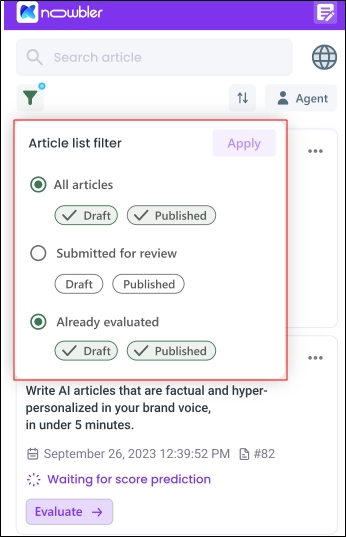
Fig. A snapshot of the filters for Content Reviewers.
Knowbler displays potential duplicate articles under the View Similar Articles dropdown:
-
Top 10 most similar articles are shown with their content overlap percentage.
-
If two articles have the same overlap, Published articles are shown first.
-
If overlap and status are identical, articles are sorted by Last Modified Date.
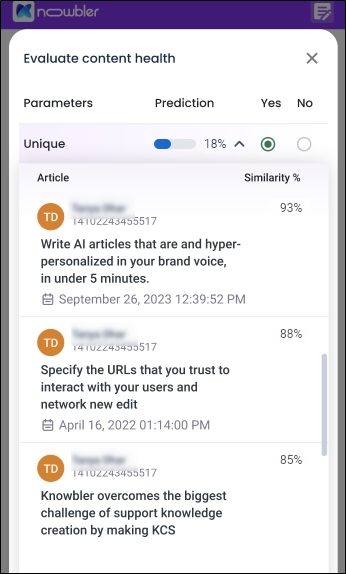
Fig. A snapshot of the list of similar articles for Content Reviewers.
Two or more content reviewers cannot evaluate the same article at the same time. If a reviewer attempts to do so, they will receive the following error: "You cannot evaluate this article as it is currently being evaluated by another reviewer." Click Go back to article list to select other articles for review.
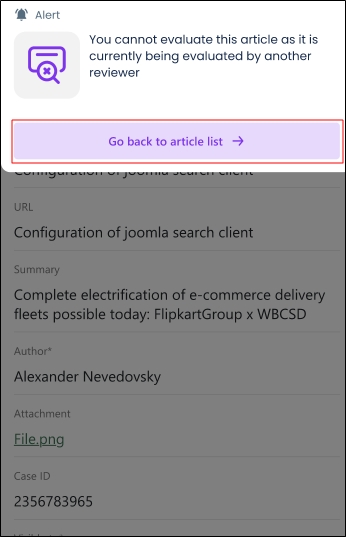
Fig. A snapshot of the error message when two or more reviewers try to evaluate an article simultaneously.
Send Back to Author (Salesforce)
Knowbler provides a Send Back to Author feature for agents working in Salesforce. This feature enhances the article review workflow by establishing an efficient feedback loop between content reviewers and support agents authoring the articles. The feature allows content reviewers to send articles back to the authors with detailed textual comments, which the agents can use to revise the articles. The improved articles can be published to Salesforce or resubmitted for another evaluation. This feature was created to encourage high-quality content creation.
To use the Send Back to Author feature, open an article for evaluation and click Send Back to Author. The button is displayed to content reviewers if the Reviewer Mode is turned on.
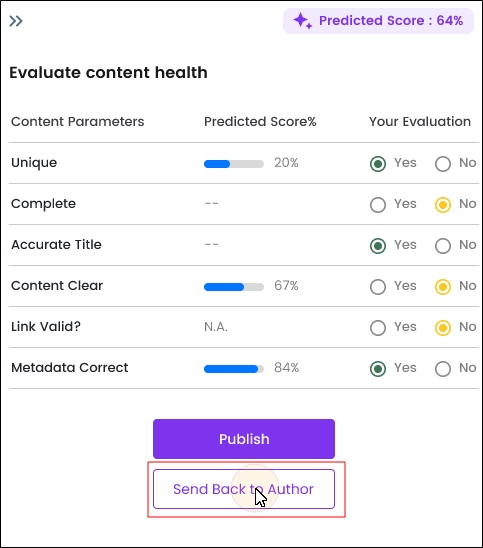
Fig. A snapshot of the “Send Back to Author” button in Knowbler on Salesforce.
Enter your feedback in the textbox. Although there is no mandatory minimum or maximum length for feedback comments, the Show More button is displayed to the author if the comment is longer than two lines.
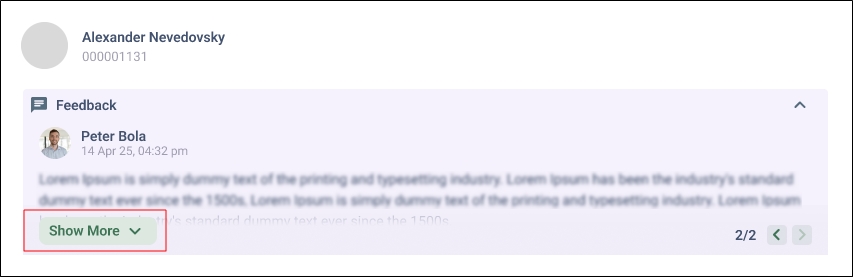
Fig. A snapshot of the “Show More” button when the feedback comment is longer than two lines.
Once you have entered your feedback, click the Send button to share it with the author. The analytics scores are updated after each round of feedback from the Content Reviewer.
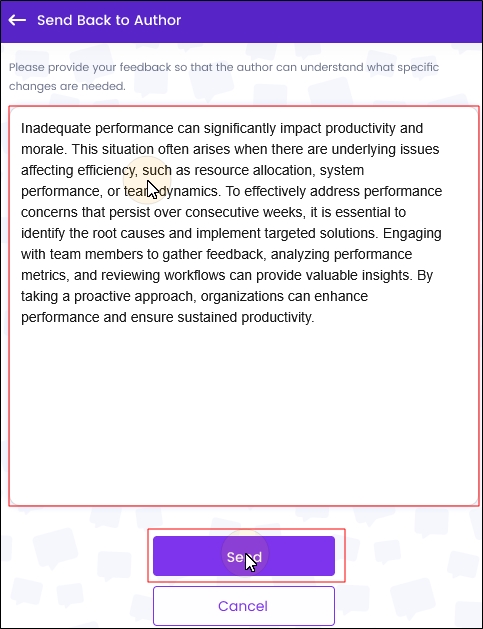
Fig. A snapshot of the feedback textbox in Knowbler in Salesforce.
After a content reviewer has clicked Send, the article is removed from the Already Evaluated and Submitted Review filters. The comments are linked with the article while it is a draft.
Creator Mode
The creator mode is available to all content reviewers whose Knowbler has been upgraded to March 2024 or a later version.
Collaboration on an article involves people with different rules. Some draft articles and others review them. With the reviewer mode, a user can fulfill both roles if they have the right set of permissions. If you're a content reviewer, then click on the top right corner of your Knowbler application to switch to the Creator Mode and draft and publish articles yourself.
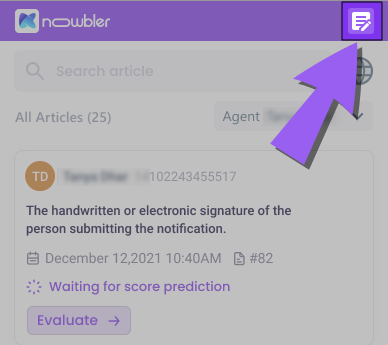
Fig. A snapshot of the Creator Mode button in Knowbler.
The Creator Mode can only be accessed when a case is open in the background.
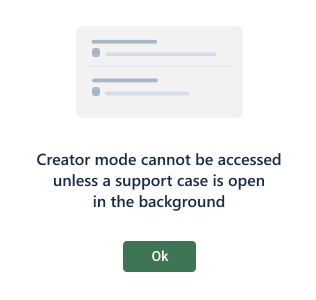
Fig. A snapshot of the error message when the agents cannot access Creator Mode.