Add FreshService and Khoros Connections
Knowbler's password management system simplifies authorization by storing the passwords associated with your FreshService and Khoros roles. We recommend adding a system right now instead of taking a detour when configuring FreshService and Khoros.
Navigation
-
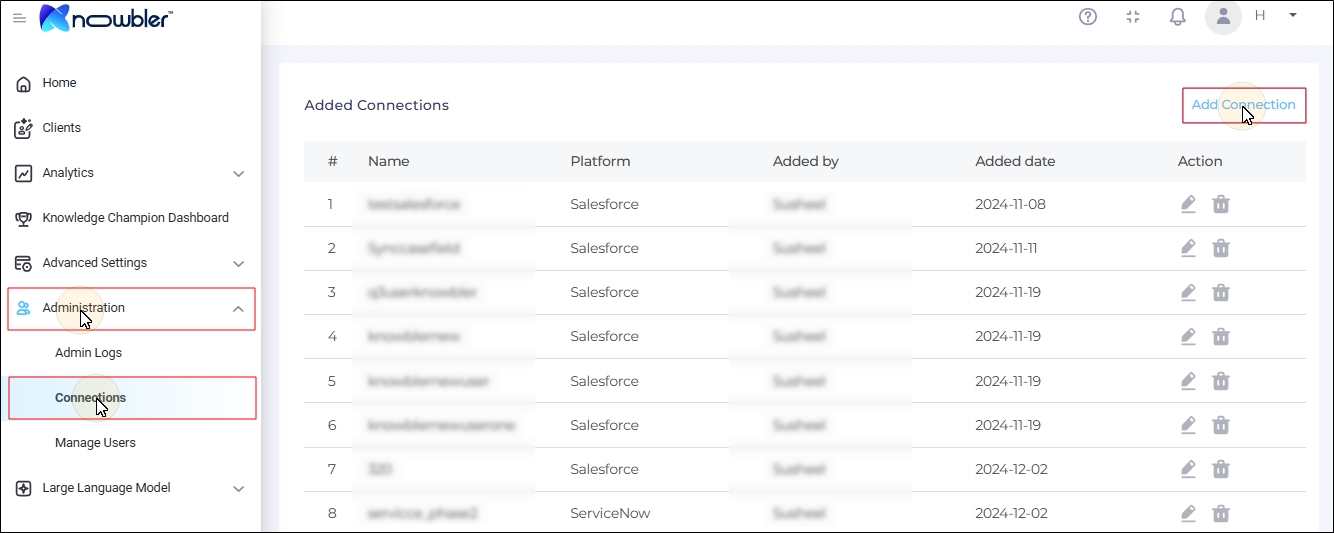
Log into Knowbler.
-
Expand Administration, open Connections, and click Add Connection.
Add a FreshService Connection
-
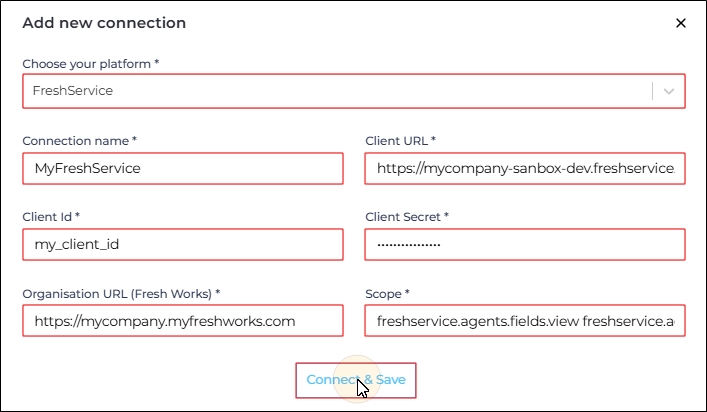
Select "FreshService" from Choose Your Platform.
-
Enter the following details:
-
Connection: Write a descriptive label. The labels help you identify the connection later on.
-
Client URL:
-
Client ID: Create an OAuth app in FreshService and enter the app's client ID in this field. The instructions to create an app are in FreshService's official documentation Create OAuth credentials.
-
Client Secret: Create an OAuth app in FreshService and enter the app's client secret in this field. The instructions to create an app are in FreshService's official documentation Create OAuth credentials.
-
Organisation URL (Fresh Works): Enter the organization URL you have received from FreshService. You can read more about Organization URLs in FreshService's official documentation.
-
Scope: Enter all the scopes of your OAuth app separated by spaces. Here is an example:
-
-
Click Connect & Save.
If the authentication is successful, the connection will be visible in the Added Connections list.
Add a Khoros Connection
-
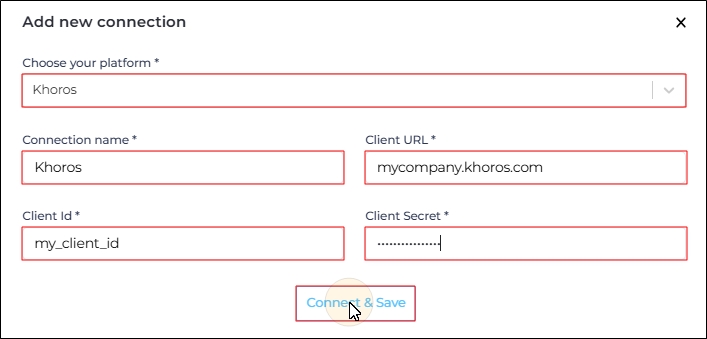
Select "Khoros" from Choose Your Platform.
-
Enter the following details:
-
Connection: Write a descriptive label. The labels help you identify the connection later on.
-
Client URL:
-
Client ID: Create an OAuth app in Khoros and enter the app's client ID in this field. The instructions to create an app are in SearchUnify documentation Khoros Authentication: Client ID and Client Secret.
-
Client Secret: ate an OAuth app in Khoros and enter the app's client ID in this field. The instructions to create an app are in SearchUnify documentation Khoros Authentication: Client ID and Client Secret.
-
-
Click Connect & Save.
If the authentication is successful, the connection will be visible in the Added Connections list.
Now you can return to Knowbler-FreshService: Configuration in Knowbler
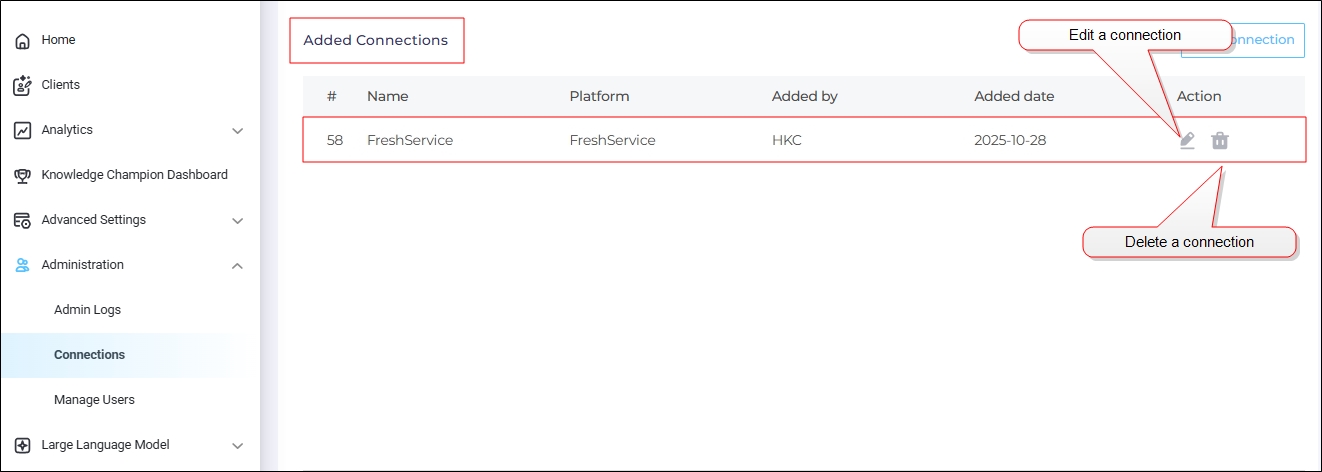
Editing, Deleting Connections
If the credentials for your instance change, use the edit function to reauthenticate.
To delete a Connection, click  .
.
Note:
Editing impacts mapping. If you have edited a Connection, don't forget to review mapping.