

Configure Case Fields to Filter Knowledge Visualization Graph
The case clusters in the Knowledge Visualization Graph are based on the data stored in all the case fields. However, using filters you can view how the clusters would look based on data from only one case field and one knowledge article field. Analytics Settings help you in selecting case fields and knowledge article fields which serve as filters on the Knowledge Visualization Graph screen.
Navigation
-
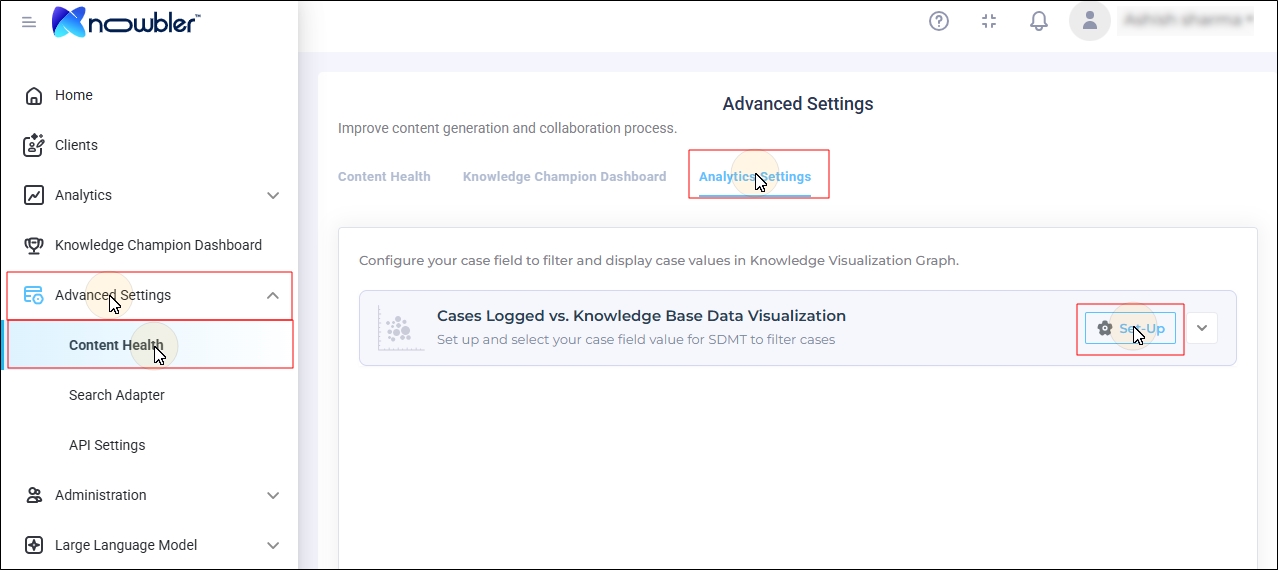
Log into Knowbler.
-
Expand Advanced Settings.
-
Click Content Health > Analytics Settings.
-
Click Set-Up.
-
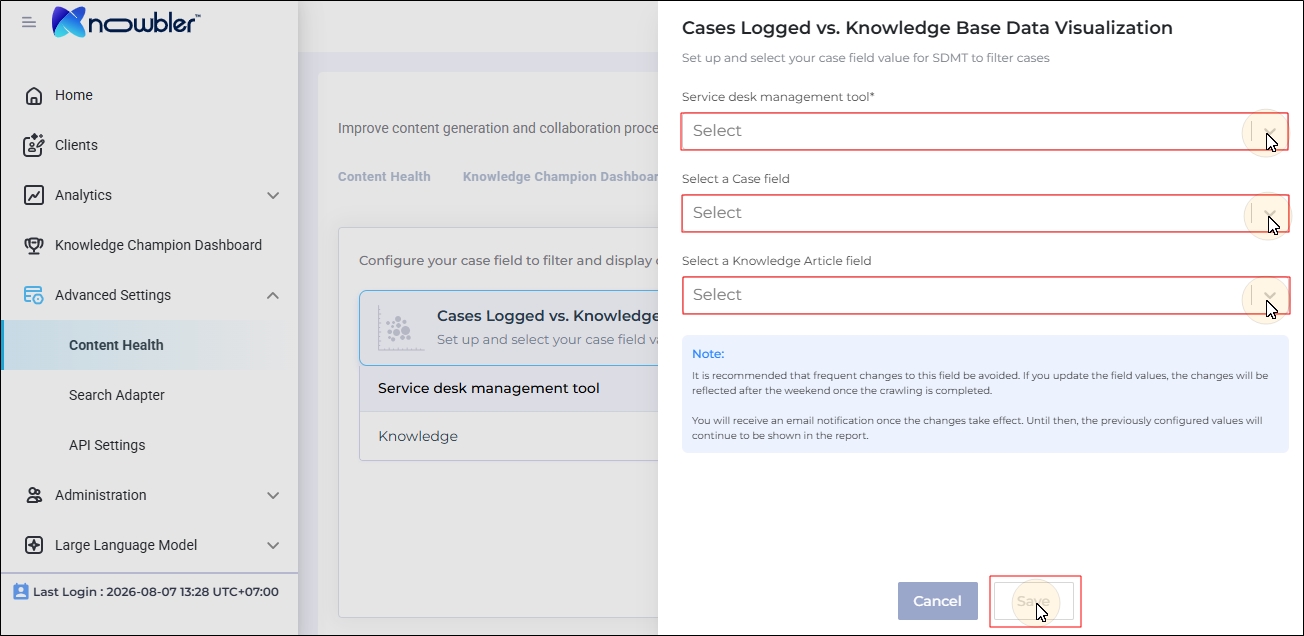
Using the three dropdowns, select
-
Service desk management tool: The platform where the cases are logged.
-
Select a Case field: The case clusters in Knowledge Base Effectiveness can be formed based on the information stored in the selected case field.
-
Select a Knowledge Article field: The article clusters in Knowledge Base Effectiveness are formed based on the information stored in the selected article field. The overlap ratio is also based on the selected field.
-
-
Click Save.