

Knowbler Release Notes (Q3 ‘26)
The third quarterly release of Knowbler in 2026 is out. This highlights of this release are brand new reports in the Knowbler dashboard and a new Web App for Salesforce.
Assign Weights to Content Evaluation Parameters in Knowbler
From this release, you can assign different weights to the parameters by turning on Assign weights to parameters?.
A Weight slider appears under each Content Health parameter when you turn on Assign weights to parameters? Use the Weight slider to configure the relative contribution of each parameter to Content Health score calculation.
A second configuration Threshold allows you to configure baseline compliance scores.
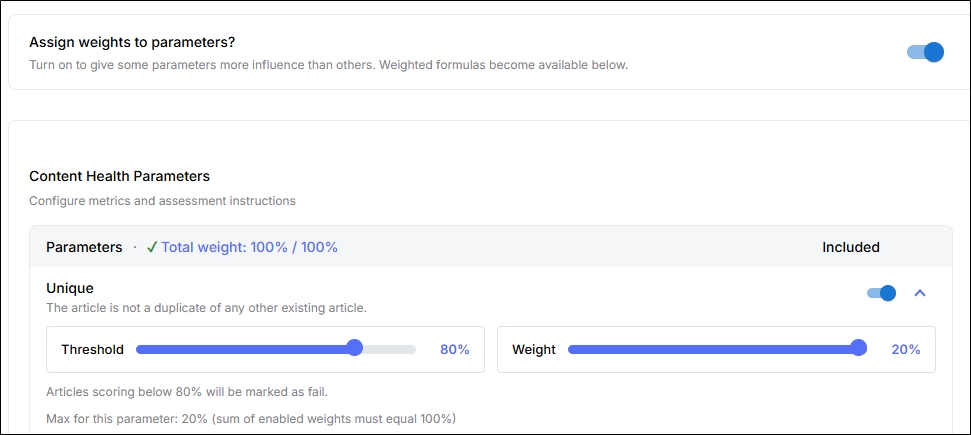
Fig. A snapshot of the “Assign weights to parameters?”, “Threshold”, and “Weight” configurations.
New UI and Features for Knowbler Web App in Salesforce
The Knowbler experience in Salesforce has been redesigned with a refreshed UI and smoother workflows to help agents work more efficiently.
Agents can now use the Switch dropdown to move between cases faster.
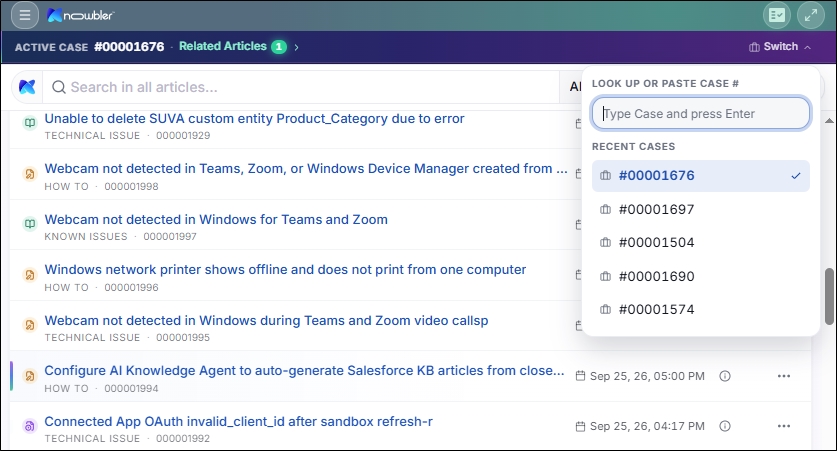
We’ve also simplified a few workflows. Review Returned Articles is now available under the Profile section, and the Knowledge Creation pop-up remains accessible regardless of whether Gamification is enabled.
Automated Content Creation and Content with AI Knowledge Agent
The newly introduced Auto-Creation mode can be invoked to create and evaluate knowledge articles while support agents are busy. Articles created by the AI Knowledge Agent follow the same review, approval, and publishing lifecycle as human-generated articles. You can view these articles in the Creation tab of the Knowbler dashboard.
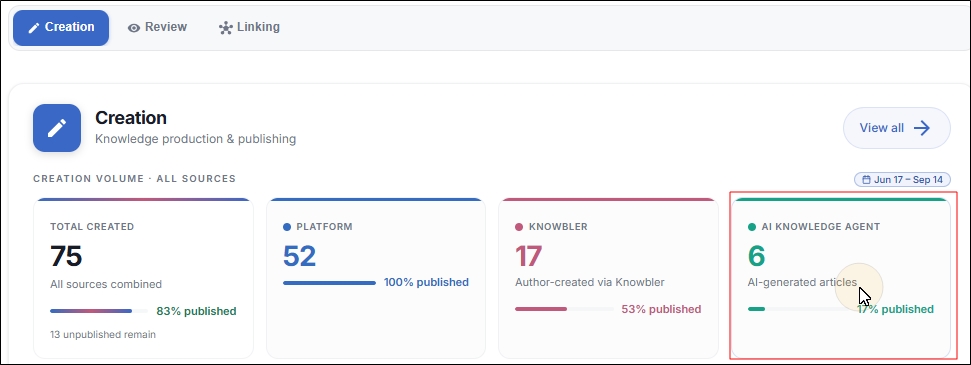
Using the Auto Mode for Knowledge creation, support teams can now create knowledge articles and review them against predefined quality parameters. To use this feature, activate it, go to Clients, click on the options, and turn on Auto-Creation.
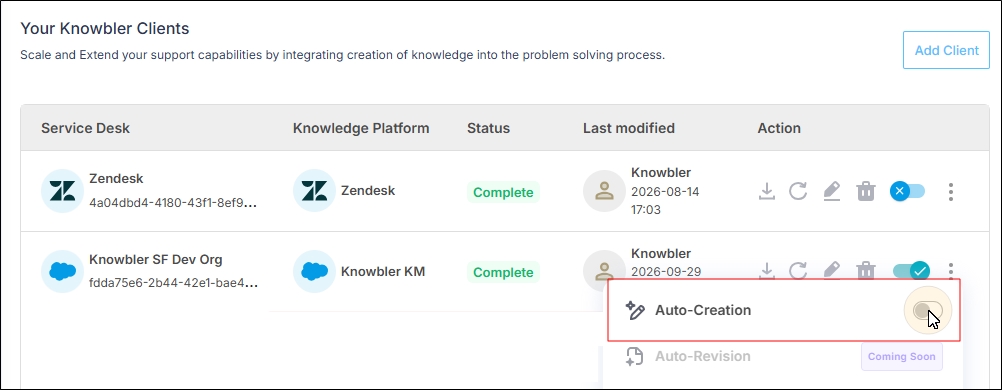
When Auto-Creation is enabled in Knowbler, the AI Knowledge Agent can generate articles as part of the knowledge workflow, while the resulting articles and activity can be tracked through Analytics.
This helps teams scale knowledge creation while maintaining visibility into AI-generated content and its quality.
Three New Tabs in Dashboard: Creation, Review, and Linking
Three new tabs have been introduced to the Knowbler dashboard: Creation, Review, and Linking.
The reports in the Creation tab are used to view the total number of knowledge articles created, the creators of those articles, and the stage the articles are in. The creator can be the support agent, support agent using Knowbler, or AI Knowbler Agent. The articles can be in the draft stage or published.
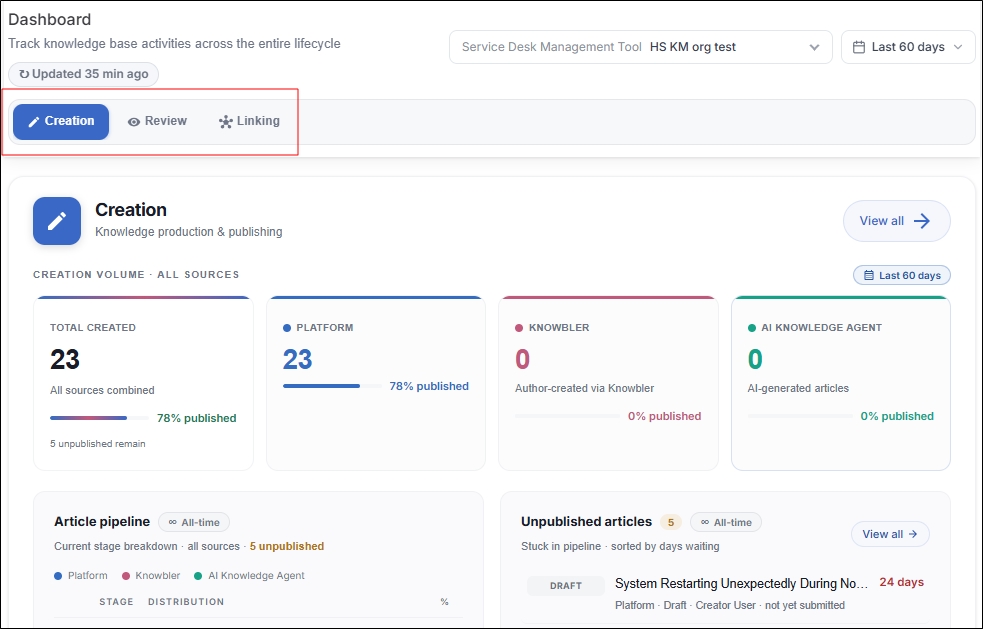
Fig. A snapshot of the Linking tab in Dashboard.
In the Review tab, you can view content health results, the number of reviewed articles, and the articles that failed to meet the content criteria. This tab also provides a parameter breakdown of all reviewed articles.
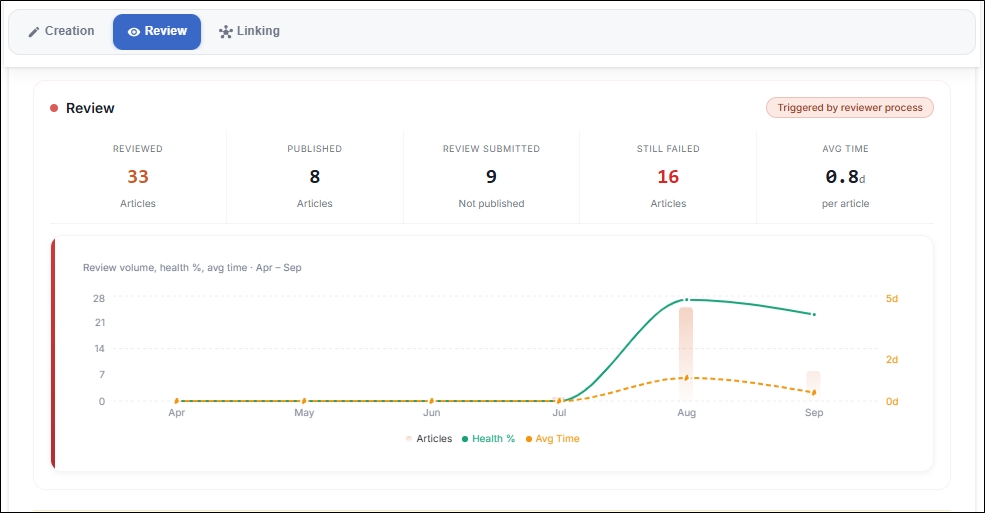
Fig. A snapshot of the Review tab in Dashboard.
In the Linking tab, you can view the number of cases to which knowledge articles have been linked. The tab also provides link-accuracy information. Scroll down to view a list of the cases and the knowledge articles linked to them.
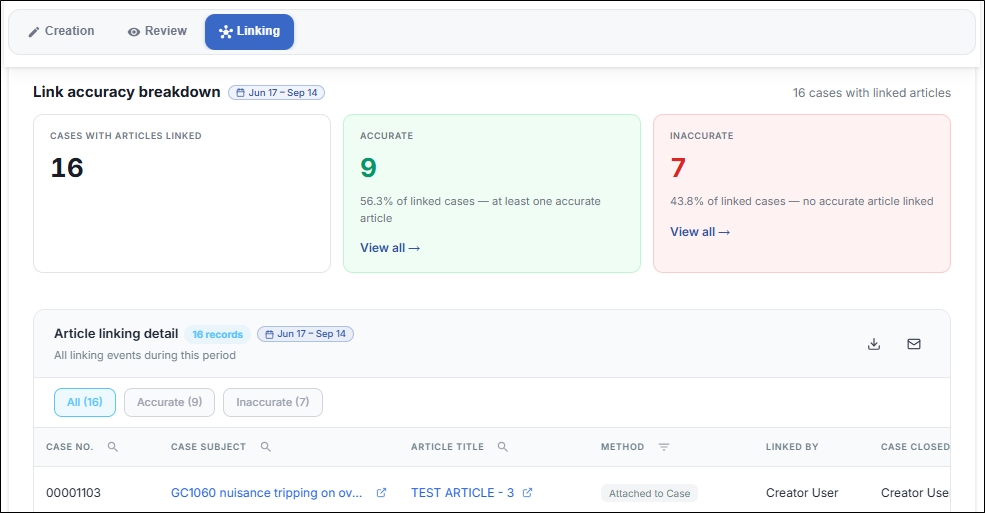
Fig. A snapshot of the Review tab in Dashboard.