

Configure Article Sharing Settings for Khoros
When no changes are made in Article Sharing Settings, the Khoros knowledge articles have public URLs in the following format:
Default URL Format:
community.khoros.com/kb/[knowledge-base-name]/[article-title-slug]/[article-id]
Example:
community.khoros.com/kb/mykb/productx/2026.htm
Using Article Sharing Settings, the admins can change the public URLs. In the next image, the Author ID field has been in place of [article-title-slug] to create a Public URL.
<image>
As a result, the knowledge article links are in the following format now:
Default URL Format:
community.khoros.com/kb/[knowledge-base-name]/[author-id]/[article-id]
Example:
community.khoros.com/kb/mykb/authorx/2026.htm
To start, click Article Sharing Settings.
<image>
The first configuration is Create Base HREF, which displays all the article fields in the gray box. Drag and drop them to the white box below to create a public URL. Insert a forward slash between each field. For example, {{field_one}}/{{field_two}} and so on.
The first and mandatory field is always the URL. Without it, the public link sharing will not work.
<image>
The last setting is Reference or Resolution (Article Type Input). By default, it is inactive. When you enable it, agents composing articles in Knowbler will see a pop-up each time they share an article. The pop-up will ask if the article is a reference or a resolution.
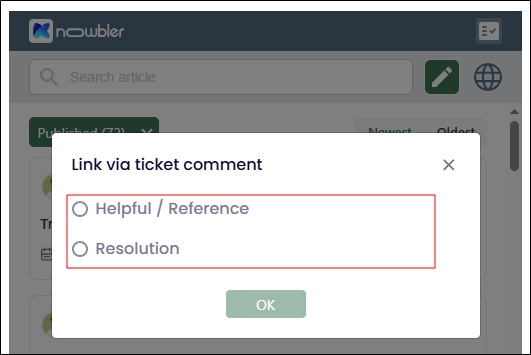
Fig. A snapshot of the dialog that is shown to the agents in Zendesk if the Reference or Resolution (Article Type Input) setting is enabled.
Enabling Reference or Resolution (Article Type Input) setting is not required.
Click Save.
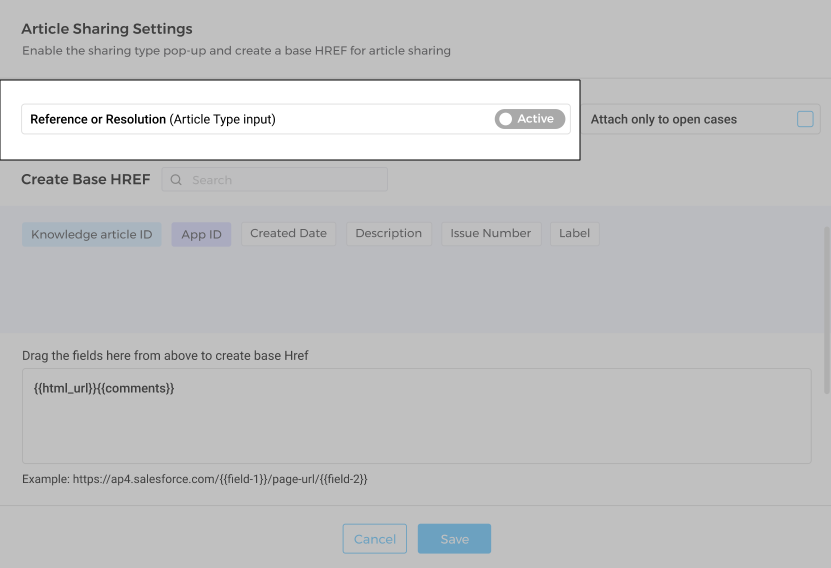
Fig. A snapshot of the checked “Mark as Reference or Resolution” dialog.