

Create an API App to Access Knowbler Analytics
can access Knowbler adoption, content health, and gamification score data via Knowbler APIs. The complete Knowbler API documentation is available at https://{{your-instance}}.searchunify.com/api-docs/knowbler. Replace {{your-instance}} with your instance name. This article explains how to create an API client in Knowbler to obtain the Client ID and Client Secret, and how to use those credentials to call the Knowbler API.
Create an API
-
Log into Knowbler.
-
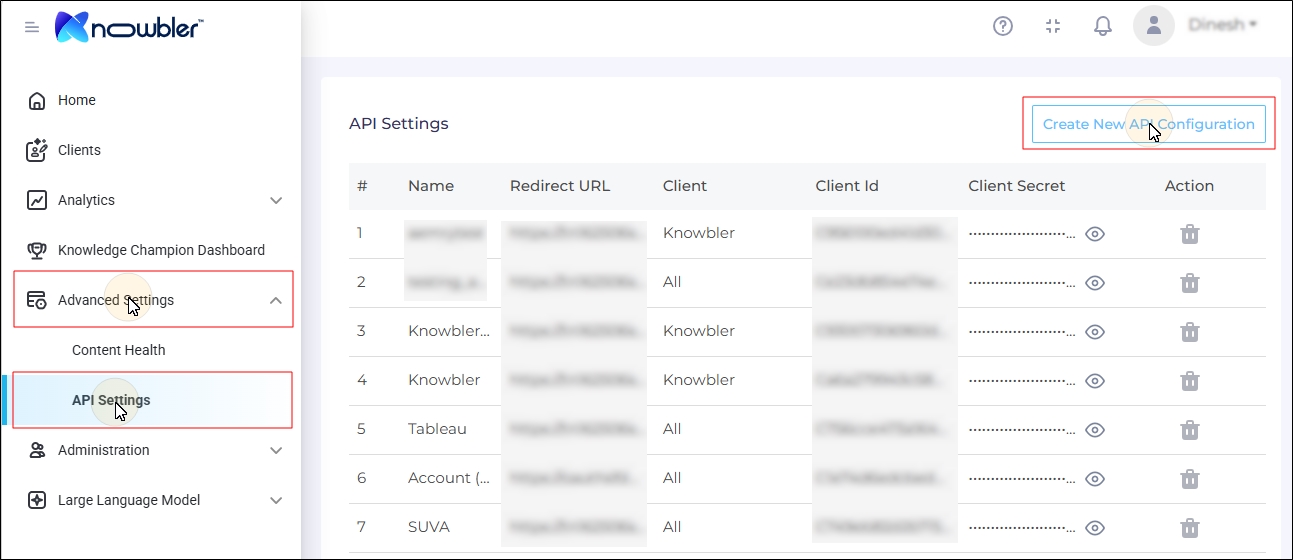
Go to Advanced Settings > API Settings.
-
Click Create New API Configuration.
-
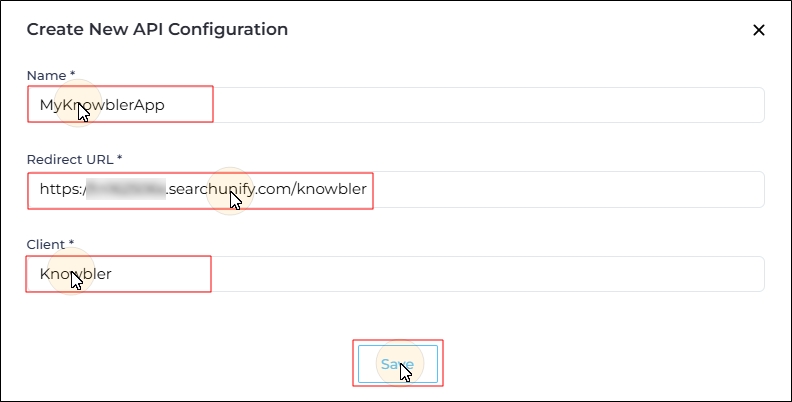
Enter the following details:
-
Name: Enter any name that will help you find the app later.
-
Redirect URL: Enter https://{{your_company}}.searchunify.com/knowbler. Replace {{your_company}} with your instance name.
-
Client: Enter Knowbler.
-
-
Click Save.
-
Your API client has been created. Copy the Client ID and Client Secret and use them for Swagger authentication. To copy the Client ID, click on it. To copy the Client Secret, first click on the Eye Icon and then on the Client Secret.

Authentication on Swagger
-
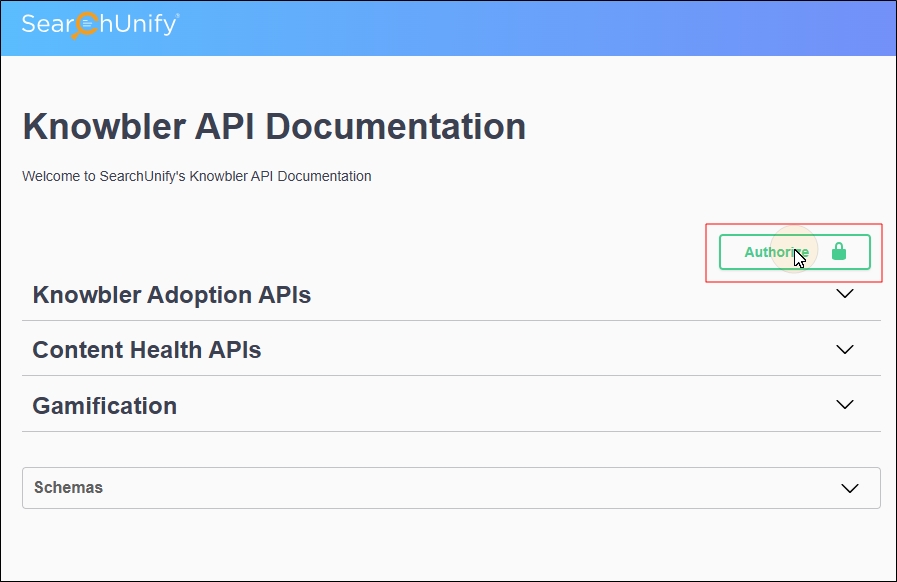
Go to https://{{your-instance}}.searchunify.com/api-docs/knowbler. Replace {{your-instance}} with your instance name.
-
Click Authorize.
-
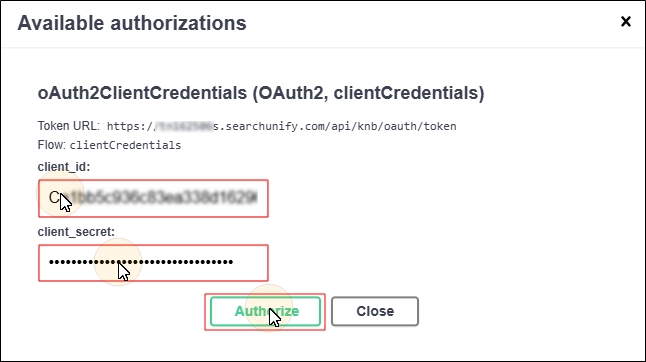
Enter the Client ID and Client Secret that you copied in step six of the previous section.
-
Click Authorize.
-
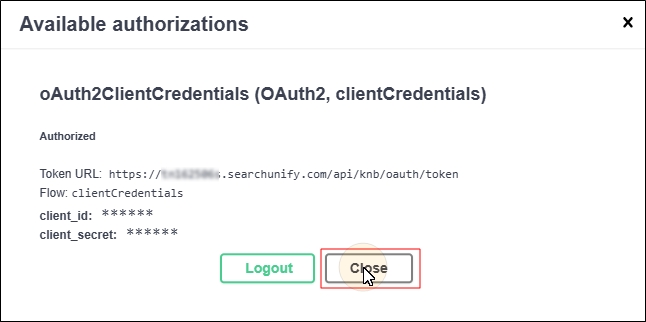
Click Close to start using the APIs on Swagger.
Troubleshooting
Here are a few common API issues and their fixes:
-
401 Unauthorized. This error occurs when your tokens are expired or your credentials are wrong. To fix, log out from Swagger and log in again.
-
500 Invalid Session. This error occurs when the OAuth token is invalid. To fix, log out from Swagger and log in again.
-
The lock icon still shows after authorizing. This error occurs due to browser cache conflicts or incorrect client_id and client_secrets. To fix, refresh the page, log out and log in, and review your client_id and client_secret.
-
Client Secret not visible. The client secret is hidden for security. To view it, click on the eye icon.